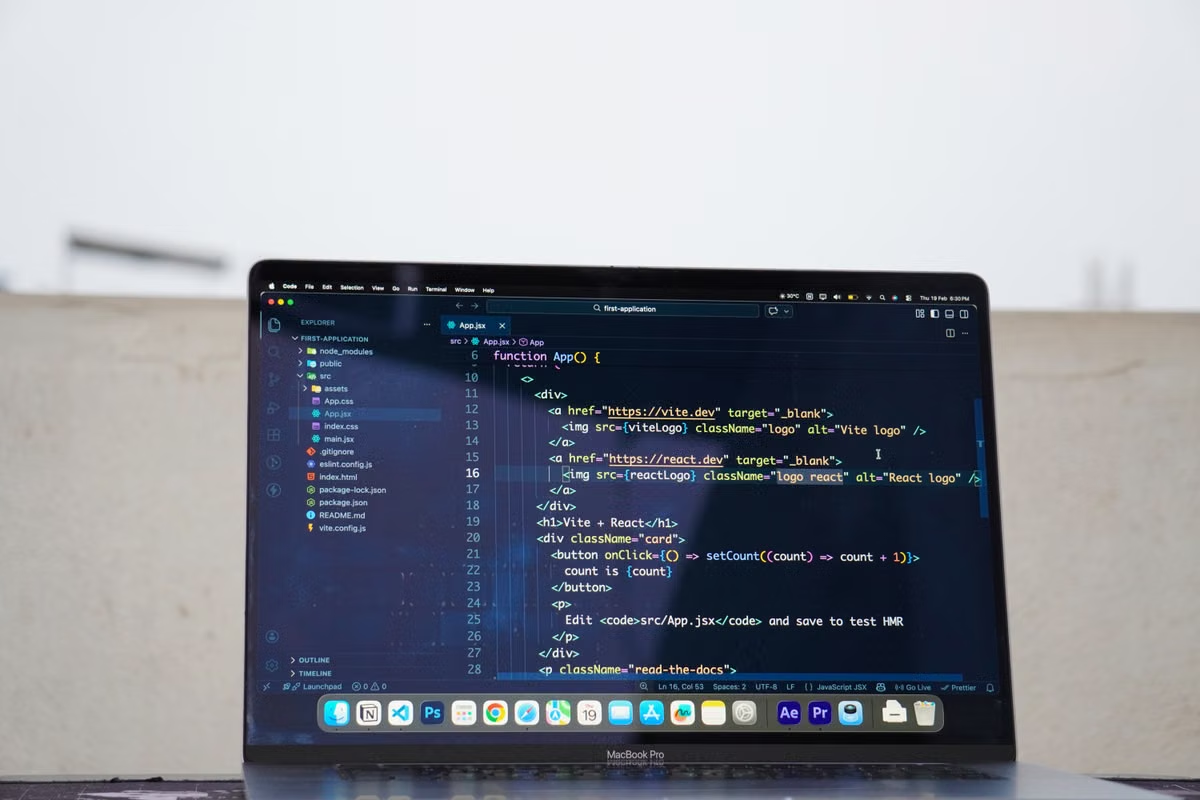
Google’s remote-access guide describes connecting to another computer through a browser and setting up a Mac as the host; it also specifies a PIN of at least six digits for remote access.Google’s setup instructions give you the basic boundary: you can connect a Chromebook to a remote Mac, but your Chromebook does not become a Mac. The Mac runs macOS apps; the Chromebook displays and controls the remote session.
This week’s action: Configure access before your trip, then use the exact Chromebook, network type, and work task you expect to rely on. Keep a local or separate remote-access fallback if you need offline work or physical peripherals.
This guide is for you if you travel with only a Chromebook and occasionally need macOS software.
It also helps freelancers validate a remote development workflow before a client deadline.
If you move between hotels or countries, use the recovery checks to plan for a dropped session.
Before departure: prepare both ends
Treat the Chromebook as your screen, keyboard, and browser—not as the machine running macOS. The remote Mac is the host. It must be powered, configured for remote access, reachable through its network, and available to the account you plan to use.
Google’s instructions cover both the browser access flow and setting up remote access on a Mac. Follow those host-side steps before you leave, including any permission prompts shown during setup. A successful sign-in alone does not prove that your real work will function well over the connection.
Choose the right session type
Persistent remote access and temporary remote support solve different problems. Use the first for your own prepared work computer. Treat a support session as a separate, temporary route rather than assuming it provides the same repeatable access.
| Access choice | Best fit | What to verify before travel |
|---|---|---|
| Remote access to your prepared Mac | Returning to the same work environment across sessions | Host setup, account access, PIN, and recovery contact |
| Temporary support session | A one-off session arranged with someone who can approve access | Who provides the code, how the session is authorized, and what happens when it ends |
| Chromebook-only work | Browser-based tasks and files available locally or through approved sync | Offline availability, required apps, and file copies |
Do not treat the access PIN as a substitute for account security. Google’s setup guidance specifies a minimum of six digits for the PIN; use a credential you can enter accurately and store it according to your organization’s rules.Remote-access setup requirements
If your device is managed by an employer or school, check whether remote desktop access is allowed. Google documents administrative controls that can restrict remote desktop use.Chrome Remote Desktop administrator controls
Pre-trip acceptance checks
Complete these checks while you still have another way to reach the Mac:
- Open the remote access page in the Chromebook browser and confirm that the intended host appears.
- Sign in and authenticate using the access method you configured.
- Confirm that the Mac reaches its desktop rather than stopping at a permission or login prompt.
- Test a harmless keyboard input, mouse movement, and normal session exit.
- Save a test document on the Mac, then verify that you know how to retrieve or sync it.
- Check the network requirements against any firewall or managed-network rules you expect to encounter. Google lists network considerations for Chrome Remote Desktop; a hotel or coworking network may impose its own restrictions.Chrome Remote Desktop network requirements
The last point matters because “the browser loads” and “the remote session works” are different tests. A captive portal, blocked connection, or restricted network can interrupt the path even when your credentials are correct.
02A remote desktop connection is not a performance guarantee. Test the actual work you plan to deliver; a visible desktop can still be a poor fit for graphics-heavy interaction, time-sensitive calls, or work that depends on local devices.
First connection: verify the browser session
Open the official remote-access page in the Chromebook browser, select the prepared Mac, and complete the authentication steps. The browser is the entry point. The remote session is the connection. The Mac is where macOS and its applications execute.
Keep those roles separate when troubleshooting. If the host is missing, check its setup and account access. If the host appears but the session does not open, check authentication and network access. If the session opens but an application fails, investigate that application on the Mac instead of reinstalling it on the Chromebook.
| Checkpoint | What you should see | What the result tells you |
|---|---|---|
| Host selection | The Mac you prepared is listed | The account can identify the intended host |
| Authentication | The configured access method is accepted | Credentials and access setup are usable |
| Desktop display | The Mac desktop appears in the browser | A remote session has been established |
| Input test | A harmless click and typed text reach the Mac | Basic control works in this session |
| Exit and return | You can leave and reconnect using the intended route | Your repeat-access workflow is understood |
Chrome Remote Desktop and its data handling are documented by Google. Review that explanation before sending sensitive material through a remote session, and follow your employer’s security policy if it is stricter.Google’s Chrome Remote Desktop data-handling explanation
Do not confuse a code issued for temporary support with the credentials used for repeat access. A temporary session is appropriate only when the person granting access is available and the session is intended to be temporary. For travel work, test the persistent route you expect to use, not just a one-time demonstration.
03Actual work: separate Mac tasks from Chromebook tasks
A remote desktop can show you a Mac application, but that does not move the application onto the Chromebook. The distinction affects software installation, file location, and what happens when the connection drops.
| Work item | Where it runs or lives | Acceptance test |
|---|---|---|
| macOS-only application | Remote Mac | Open the project, perform a representative action, save, and reopen it |
| Browser-based task opened locally | Chromebook | Confirm it works without the remote session if you expect offline access |
| Project file created on the Mac | Remote Mac unless transferred or synced | Verify the copy at its destination from the Chromebook |
| External device connected to the Chromebook | Chromebook side | Check whether the task actually requires that device to be attached to the Mac |
For a development task, do more than open an editor. Load a representative project, confirm that required tools and credentials are available on the Mac, make a harmless change, save it, and verify the result. If your deliverable depends on a build, export, or upload, test that complete path. Avoid assuming that a particular application or workflow is compatible simply because the desktop is visible.
For document or design work, test sign-in, opening an existing file, saving a revision, exporting the required format, and delivering the exported file. Those are separate steps. A failure in file transfer or account access can block delivery even when the app itself behaves as expected.
Chromebook keyboard shortcuts can differ from Mac shortcuts. Google documents Chromebook-specific key combinations, but that does not guarantee every shortcut will pass through a remote session exactly as you expect.Chromebook keyboard shortcut reference Test the combinations you use most. If a shortcut is intercepted by the Chromebook or browser, use an in-app menu or another tested route rather than discovering the conflict during a deadline.
FAQ: browser access, apps, and recovery
Can I control a Mac from a Chromebook without installing a Mac app on the Chromebook?
Yes. You can open the remote access page in a browser and connect to a Mac configured for remote access. The browser is the access point, not the macOS computer itself. You still need to configure the Mac host, authenticate, and test the session from your actual Chromebook before relying on it for a deadline.
Will Mac software run on my Chromebook after I connect?
No. When you open an app in the remote session, it runs on the remote Mac. The Chromebook displays and controls that session. Chromebook-native apps and local files remain on the Chromebook unless you deliberately transfer or sync them, so confirm that sign-in, saving, export, and delivery all work across the two environments.
What should I check if my remote Mac session disconnects?
First check whether the Chromebook still has internet access, then retry the approved browser entry and authenticate again. Once connected, confirm the Mac is responsive and inspect the open project before resuming. If the host cannot be reached, stop work that could create conflicting edits and switch to a tested backup or contact the person responsible for the host.
How do I get a file from the remote Mac onto my Chromebook?
Use a transfer path that you have tested in advance, such as an approved cloud location or a supported transfer feature in your remote-access setup. Do not assume that a file shown in the remote desktop is already saved locally. Open the file from the Chromebook after transfer and verify its contents before sending it to a client or treating it as your only copy.
04Full work session: test files and network changes
A coffee shop session may feel fine for short text edits but fail when you need to upload a large deliverable or use a workflow that depends on continuous interaction. You cannot determine that from a login test. Run a representative task on the kind of connection you expect to use.
Try the work in a deliberate sequence:
- Open the project from the location you will use while traveling.
- Perform a real but reversible task, such as editing a copy or exporting a test file.
- Save on the Mac, then confirm where the saved version resides.
- Transfer or sync the output through the route you have approved.
- Open the transferred file locally on the Chromebook and inspect it.
- If practical, reconnect after switching between a private and a mobile network. Record what you had to repeat.
The Chromebook’s file and external-device documentation helps clarify what the local device can access; it does not establish that a peripheral attached to the Chromebook will be available inside the Mac session.Chromebook file and external-device guidance Test device-dependent work separately. If you need an external drive, specialized input device, or local hardware connection, keep a plan that does not depend on unverified pass-through behavior.
For files needed without a connection, Google explains how to make supported cloud files available offline on a Chromebook.Chromebook offline file guidance Use that only for the files and services covered by the instructions, and verify the file is actually available before leaving reliable Wi-Fi. A remote Mac session itself still requires a reachable host and network path.
Keep a short travel record: the device used, network type, task attempted, file route, and what happened after a disconnect or network change. This is your own acceptance record, not a universal performance result. Do not infer that another hotel, country, or Chromebook will behave the same way.
05Disconnection recovery: restore work without guessing
If a session drops, avoid repeatedly editing through uncertain copies. First determine whether the Chromebook has internet access. Then reopen the browser entry and retry the approved authentication route. After reconnecting, inspect the Mac desktop and the project state before continuing.
If the Chromebook is offline, move to local work only if the required files are available locally and the task can be completed without macOS. For cloud-synced files, check whether the specific documents were made available offline in advance. When the Mac host is unreachable, stop tasks that could produce conflicting versions. Use a tested backup route or ask the host administrator to confirm availability.
| Failure case | First check | Safe next action |
|---|---|---|
| Browser cannot reach the remote service | Chromebook internet and network sign-in | Complete the network login or switch to a tested connection |
| Host is not listed or reachable | Host setup, account, and Mac availability | Use the backup entry or contact the person responsible for the Mac |
| Session opens but a task cannot continue | Application state and last saved file | Inspect the project before repeating changes |
| Chromebook has no connection | Local file availability | Continue only with work that is genuinely available offline |
Final decision: remote Mac, local fallback, or both
Use these decision branches before you travel:
- If your required macOS task passes the full save-and-deliver test, the host is reachable, and you have a tested recovery route, choose the remote Mac as your macOS work environment.
- If you need to work during periods without internet, keep local tools and files for those tasks; remote access cannot replace an offline workflow.
- If your work depends on a peripheral attached to the Chromebook or another physical device that you have not tested through the session, keep a local Mac or another compatible setup for that task.
- If a client deadline depends on continuous access and you have no backup entry, do not make the remote session your only route until you have tested recovery.
This setup has clear advantages: you can travel with a lighter device, access a prepared macOS environment, and keep Mac-dependent work separate from the Chromebook. It also has real limits: your session depends on network access, file transfer adds a separate failure point, and local peripherals or offline work may not fit. Those are reasons to validate a mixed workflow, not reasons to assume every task will work remotely.
If you already own a Mac and need it every day, relying on a remote setup may add unnecessary network and recovery dependencies. If you only need macOS for a defined project or travel period, compare that need with the rental term and delivery method before committing. You can review VpsMesh Mac rental pricing and the available remote Mac order options after your browser connection and representative task pass acceptance. Choose a rental only if the project period, online availability, and lack of local-peripheral requirements fit your work; otherwise, keep a local Mac or a separate fallback.