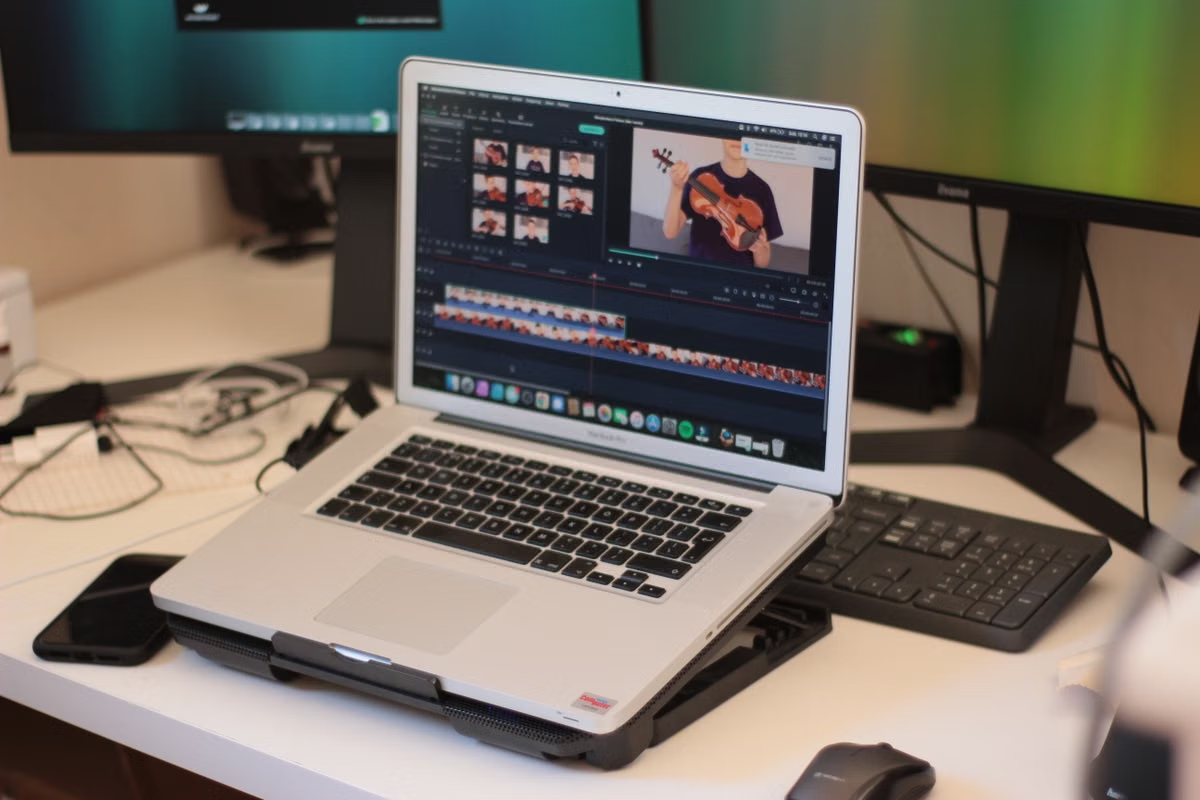
An Apple format guide gives capacity estimates for each supported Final Cut Camera recording option, including ProRes choices: see the official format settings guide. That leads to the key planning rule:
Do not size storage from the final video length. Size it from the project’s peak: originals, transfer copies, proxies, cache, exports, and backups existing at the same time.
This guide is for you if you:
- Shoot commercial clips, events, or social content with an iPhone.
- Use Windows as your main computer but plan to edit on a remote Mac.
- Need to estimate capacity before a team collects footage.
- Deliver several review versions or keep client archives.
Last updated September 8, 2026. Version and format information was checked against Apple’s Final Cut Camera 2.3 release notes, format documentation, and Final Cut Pro storage guidance.
01Start with the delivery target, not the codec label
Final Cut Camera 2.3 gives you more than one ProRes choice. The correct option depends on the job you must finish, not on the assumption that the largest file is always the professional choice.
For a fast social post, short promotional clip, or internal review, HEVC may be enough. It usually places less pressure on storage and transfer than ProRes. If you need an editing-friendly format but still want to control the source footprint, ProRes 422 LT is the first option to evaluate.
For a normal commercial edit with color work, ProRes 422 may offer a more balanced starting point. ProRes 422 HQ is more appropriate when your post-production process needs a higher data rate and the larger source files are justified.
Apple ProRes RAW belongs to a different decision category. It can preserve more flexibility for certain camera and post-production workflows, but it also changes the requirements for compatible hardware, software, and storage planning. Do not select it simply because it sounds more advanced.
Apple explains the technical differences between ProRes formats in its ProRes technology overview. The practical decision is narrower:
- Choose HEVC when compact capture and fast delivery matter most.
- Choose ProRes 422 LT when you want an editing-oriented format with tighter storage control.
- Choose ProRes 422 for a general professional workflow.
- Choose ProRes 422 HQ only when the project’s grading or finishing requirements justify the extra source footprint.
- Evaluate ProRes RAW separately because it changes the workflow rather than simply increasing quality.
Important: A higher codec specification does not guarantee a visibly better finished video. Lighting, exposure, focus, motion, and the delivery platform can matter more than moving from one ProRes tier to another.
The version number also matters when you document a project. If your downstream workflow uses Final Cut Pro 12.3, confirm that the installed software, plug-ins, and media settings match the project before you upload a large camera batch. Version compatibility should be checked before transfer, not after the remote editing disk is full.
02The recording variables that set your source capacity
Your first storage estimate should be based on planned recording duration. The final edit may be short, but the camera originals reflect everything you record, including alternate takes, pauses, setup shots, and unused angles.
The main variables are:
- Recording time.
- Codec.
- Resolution.
- Frame rate.
- Number of cameras or phones.
- Whether the team keeps every take.
Apple’s Final Cut Camera documentation provides the capacity estimates for supported recording configurations. Use the row that matches your actual format instead of applying a generic ProRes multiplier. The estimate for one setting should not be reused for another setting with a different resolution or frame rate.
A reliable first worksheet has one line per camera or phone:
| Project item | Value to record before shooting |
|---|---|
| Camera or phone | Device and assigned operator |
| Codec | HEVC, ProRes 422 LT, ProRes 422, or ProRes 422 HQ |
| Resolution and frame rate | Exact setting selected in Final Cut Camera |
| Planned recording time | Total time you expect to roll, not final edit length |
| Apple capacity estimate | Value from the matching official format table |
| Source total | Capacity estimate multiplied by planned recording time |
| Copies to retain | Original, staging copy, remote working copy, archive copy |
The most common mistake is entering a five-minute finished video into the sheet when the crew will record far more material. Build the first version from expected camera time. Replace the estimate with the actual file size after the first transfer, but do not reduce the pre-shoot plan to the expected duration of the final cut.
For a multi-camera session, calculate each camera separately. One phone may use HEVC for behind-the-scenes footage while the principal camera records ProRes. Combining them into one average rate hides the largest source and makes the remote Mac estimate unreliable.
03Transfer copies create the first storage peak
The project can reach its first peak before editing begins. A file may exist in several places at once:
- The original remains on the iPhone or external storage.
- A Windows staging copy is created for checking or upload.
- The remote Mac receives an uploaded copy.
- A library or folder may create another working reference.
- A backup may be made before the source is cleared.
Apple documents the supported ways to share and transfer Final Cut Camera videos. That documentation should determine whether your chosen handoff preserves the required file, metadata, and quality.
You normally face three transfer paths.
Direct import to the Mac reduces the number of local staging files, but it depends on your ability to connect the source device to the Mac workflow and verify the result. It can be suitable when the person operating the camera also controls the edit environment.
Windows staging first is easier when your footage is already collected on a Windows workstation. It creates a useful verification point, but it can temporarily require both the Windows copy and the remote Mac copy. Do not delete the staging copy until the upload, file count, and sample playback have been checked.
Team collection centralizes files from several operators. It improves handoff control, but it creates a larger intake peak. Each camera may arrive with its own folder structure, duplicate clips, and correction files. A coordinator should verify the collection before editors begin generating proxies.
For remote Mac work, the upload is only one part of the calculation. A slow or interrupted transfer does not change the final file size, but it can extend the period during which two or more copies must remain available. That affects the rental window and the amount of working storage you need.
04Proxies and generated files belong in the workspace estimate
Original ProRes media is only one part of an editing workspace. Final Cut Pro may create proxy media, render files, analysis files, and library data as the project develops.
Apple’s Final Cut Pro proxy media documentation explains how proxy files are created and used. The planning consequence is straightforward: proxies can make remote preview and editing more manageable, but they do not replace the originals that you must preserve for relinking, finishing, or re-exporting.
Keep these categories separate in your worksheet:
- Original media: the camera files that must remain protected.
- Proxy media: editing copies created for lower-bandwidth or lighter playback.
- Render and analysis files: generated files that support playback, effects, or analysis.
- Library and project data: timelines, events, metadata, and project changes.
- Exports: review files, client versions, captions, and final masters.
Do not insert an unsupported percentage for proxy or cache growth. The result depends on the project, format, effects, timeline settings, and whether you render frequently. Generate a representative section of the project first. Record the actual folder growth, then use that result for the full project estimate.
Working rule: Treat proxy media as an additional category until your own project test proves otherwise. It lowers editing pressure; it does not erase the source-storage requirement.
A remote Mac can be helpful when Windows is your main machine and the project depends on macOS software. However, a remote workflow does not remove capacity limits. If the Mac workspace is too small, the practical symptoms are failed imports, incomplete proxy generation, interrupted exports, and repeated file transfers.
05Export and backup files determine the delivery peak
The final export often arrives while the original media, library, proxies, and cache are still present. A client review may create another version before the previous version is approved. A revision can then require the full working project again.
Separate files by whether they are replaceable:
- Rebuildable: render files, some analysis files, and other generated cache.
- Required for editing: originals, project libraries, essential graphics, fonts, and plug-ins.
- Required for delivery: approved masters, review versions, captions, and client-supplied deliverables.
- Required for protection: verified backup copies of the source and project.
Final Cut Pro provides guidance on deleting generated files. Use that guidance only after checking what your project can regenerate. Clearing generated files may recover space, but it is not a substitute for retaining original footage or a verified project backup.
Your safety margin should reflect responsibility:
- For a personal social clip, you may only need the source, active project, and approved export at the same time.
- For a client project, keep review versions until approval and retain the source until the delivery obligation is complete.
- For a team archive, plan for the project package, source media, documentation, and at least one verified backup location.
Do not solve an export shortage by deleting camera originals. First identify whether generated files can be removed, whether old review files can be moved, or whether the remote workspace needs a larger capacity.
06A peak-capacity formula for remote Mac planning
Use this formula before selecting a remote Mac:
Peak required capacity = source originals + transfer copies + working library + proxy media + generated files + exports + backup set + safety margin
This is not a promise that every category will always remain on the same disk. It is a stress test. It tells you the largest amount of space that may be required before you decide which copies can be deleted or moved.
For a short one-off project, a temporary remote Mac can make sense if you have already verified the source total and the expected workspace growth. For continuous client work, a longer rental period may be simpler because repeatedly rebuilding the environment creates its own transfer and verification burden.
If your calculated peak exceeds the available workspace, choose one of these actions before uploading:
- Reduce the recording codec only if the delivery target allows it.
- Split the project into verified batches.
- Move approved exports and old review versions off the working disk.
- Generate proxies after confirming the source copy is safe.
- Select a larger remote workspace.
- Keep the main archive outside the active editing environment.
You can compare available Mac options on the VpsMesh Mac rental pricing page, but capacity suitability must come from your project worksheet. A lower rental price is not useful if the project has to be uploaded twice or stopped during delivery.
07FAQ: ProRes storage decisions before editing
How much room does one hour of Final Cut Camera ProRes footage require?
Apple’s official Final Cut Camera format table gives the relevant capacity estimate for each supported recording configuration. Match the exact codec, resolution, and frame rate you plan to use. Then multiply by planned camera time and add the copies that will coexist during transfer. One hour of finished video is not the same as one hour of recorded footage.
Which ProRes 422 option should you choose?
ProRes 422 LT is usually the first option to assess when you need an editing-oriented source but want to control storage and transfer demand. ProRes 422 is a balanced professional choice. ProRes 422 HQ needs stronger justification because it increases the source footprint. Decide from grading, finishing, and delivery requirements rather than the codec name alone.
What should be reserved for moving footage to a remote Mac?
Reserve space for the original source, any Windows staging copy, the remote Mac working copy, and the project library. If a backup is made before editing, include that too. The correct amount is the largest simultaneous set of copies, not simply the size of the camera folder after the transfer is complete.
Should proxy media and cache be counted separately?
Yes. Proxy media is an additional editing representation, while render and analysis files are generated workspace data. Final Cut Pro documentation explains how proxy files and generated files are managed, but your project determines the actual growth. Test a representative section, record the resulting folder size, and keep originals protected before cleaning generated files.
08A pre-upload capacity checklist
Use this checklist before you rent a remote Mac or start a large upload:
- [ ] Record the exact Final Cut Camera codec, resolution, and frame rate.
- [ ] Use Apple’s matching capacity estimate for that format.
- [ ] Estimate planned recording time for every camera.
- [ ] Add all camera originals, including alternate takes and unused angles.
- [ ] Mark whether a Windows staging copy will exist.
- [ ] Mark whether the original device or external storage must remain untouched during transfer.
- [ ] Add the remote Mac working copy and project library.
- [ ] Test proxy generation on a representative section.
- [ ] Measure generated files instead of inserting an unsupported percentage.
- [ ] Add review exports, final exports, captions, and client versions.
- [ ] Identify which files are rebuildable and which are not.
- [ ] Confirm the remote Mac’s available working space before uploading.
- [ ] Set a deletion rule for verified transfer copies and generated cache.
- [ ] Decide how long the project must remain available for revisions.
- [ ] Recalculate the peak after the first real media batch arrives.
The checklist is deliberately stricter than a simple “camera folder size” estimate. It protects you from the storage peak that appears during handoff, proxy generation, and delivery.
09When a remote Mac is the better capacity decision
A Windows workstation can collect footage and manage ordinary files, but it becomes a weaker long-term setup when the project depends on macOS-only editing tools, a Final Cut workflow, or a shared remote workspace. Its main drawbacks are format and software compatibility checks, another staging copy during upload, and the risk of carrying the project between incompatible environments.
A local Mac can be the better choice for constant heavy production, predictable long-term ownership, or workflows that require physical camera and audio connections. It is less attractive when you only need macOS for selected projects, when your main computer is Windows, or when a team needs temporary access without buying another machine.
VpsMesh is more suitable when you have already calculated a representative project peak and need a temporary or flexible Mac editing environment. Before uploading all ProRes originals, compare that peak with the available workspace and the rental period shown in the VpsMesh Mac order options. This avoids paying for an environment that is too small, while also avoiding unnecessary storage and rental time.
The best next action is simple: take one real Final Cut Camera project, calculate its simultaneous peak, test the transfer route, and only then decide whether to upload every ProRes original to a remote Mac. That approach is safer than choosing storage from the final edit duration and discovering the shortage during client delivery.