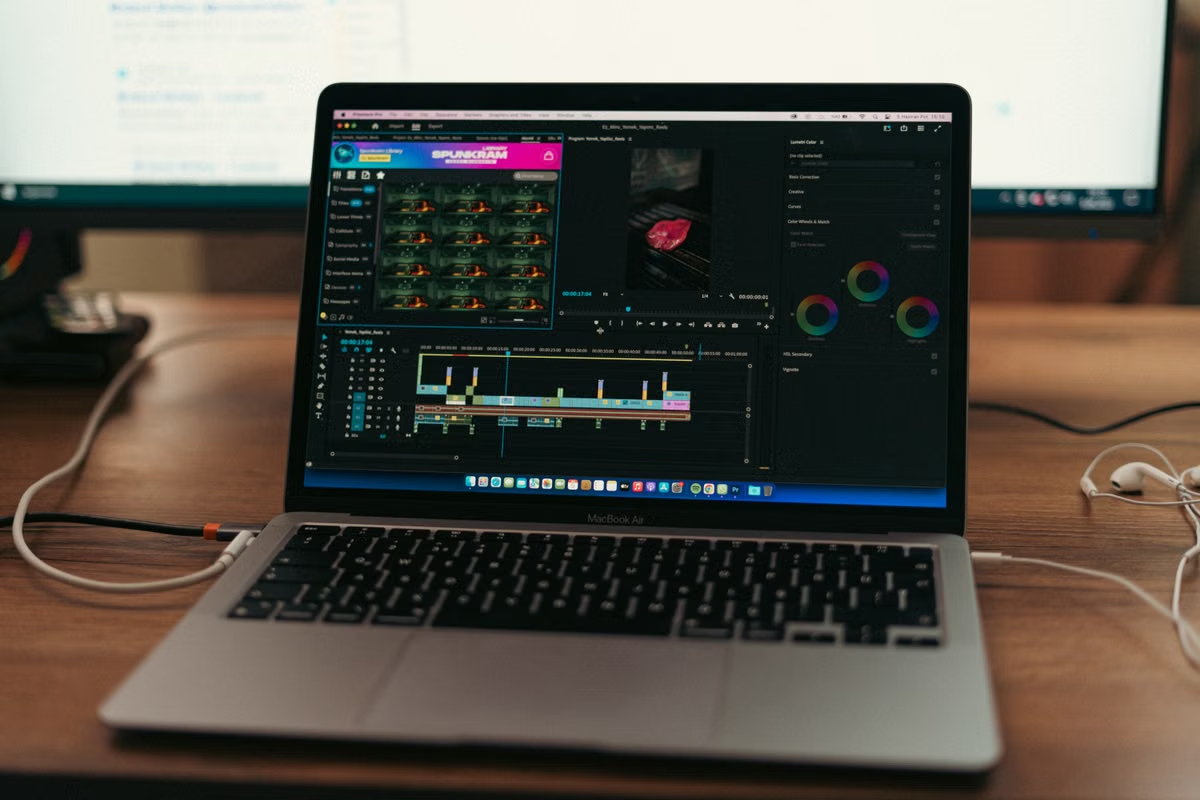
A Motion project opens on your Windows PC, but Motion 6.3 does not.
Fastest fix: use a remote Mac for Motion editing, template publishing, and Final Cut Pro validation.
Motion 6.3 was released on June 30, 2026. Apple lists macOS 15.6 as its minimum system requirement, and the app is designed for Mac. (Apple’s Motion 6.3 release information)
This week, move one representative template to a remote Mac, publish it, open it in Final Cut Pro, and test the delivered files before committing to a permanent workstation.
This guide is for you if you are:
- A motion designer using Windows who has received a Final Cut Pro template request.
- An editor who needs to modify a Motion title, transition, effect, or generator temporarily.
- A small creative team deciding whether a remote Mac can support template production and delivery.
Last updated August 15, 2026. Current Motion version, system requirements, and template workflow were checked against Apple’s official release notes, product information, and user guides.
01The delivery target comes before the software choice
“Make a Motion template” can describe three very different deliverables:
- A Motion project file that someone will continue editing.
- A published Final Cut Pro template that appears in the Titles, Effects, Transitions, or Generators browser.
- A finished video file that no longer needs editable Motion controls.
Only the first two require Motion. If the client only needs a finished video, you can prepare the creative work in a cross-platform application and deliver an exported file. That does not replace Motion when the client expects editable Final Cut Pro controls.
Motion supports four main Final Cut Pro template types: effects, transitions, titles, and generators. Apple’s workflow documentation explains that each type is saved to a different browser in Final Cut Pro. (Apple’s Motion template workflow guide)
When a remote Mac is the right answer
Choose a remote Mac when:
- The project is occasional rather than part of every daily delivery.
- You already own a capable Windows workstation for editing and asset preparation.
- The client specifically requires a published Final Cut Pro template.
- You need Motion for a short revision window or a single production cycle.
- You want to test the workflow before buying a Mac.
A remote Mac is less suitable when you require:
- Physical camera, capture, MIDI, audio, or monitoring hardware.
- On-site color evaluation under controlled viewing conditions.
- Constant local access to a large plugin library.
- Long, high-frequency production with many simultaneous projects.
- A workflow that depends on physical drives or peripherals attached directly to the workstation.
The key distinction is simple: remote access solves the Mac application requirement. It does not remove every physical-device, monitoring, or dependency requirement.
02Motion 6.3 on Windows: the platform boundary
Motion 6.3 cannot be installed natively on Windows. Apple’s current product information identifies Motion as a Mac application, while the Motion 6.3 user guide lists macOS 15.6 as the minimum system requirement. The same product information lists 8 GB of memory as the minimum and 16 GB as recommended. (Motion on the Mac App Store)
That gives you three practical routes:
Route A: Windows-only production
Use a cross-platform motion graphics tool and export a video.
Advantages
- No Mac access is required.
- Windows files stay in your existing environment.
- You can continue using your current peripherals.
Limitations
- You are not producing a native Motion project.
- You are not publishing a Final Cut Pro template.
- Editable text, drop zones, published controls, and Final Cut Pro browser placement may not transfer.
Route B: Windows plus remote Mac
Prepare assets and organize the job on Windows. Use the remote Mac for Motion, publishing, and Final Cut Pro testing.
Advantages
- You keep your main Windows workstation.
- You can create the required Motion 6.3 deliverable.
- You avoid buying a Mac for an occasional requirement.
- You can validate the actual client-facing workflow.
Limitations
- File transfer becomes part of the process.
- Remote display responsiveness varies by connection and project load.
- Fonts and plugins must be tracked manually.
- Color-critical review may still need a controlled local setup.
Route C: Fixed Mac workstation
Use a dedicated local Mac for frequent Motion and Final Cut Pro work.
Advantages
- More predictable access.
- Easier plugin and font management.
- Better fit for daily production and repeated revisions.
- Fewer transfer steps between projects.
Limitations
- Hardware cost arrives before you know the workload.
- You must maintain storage, updates, backups, and local access.
- It is excessive for one short template assignment.
- A fixed machine does not automatically solve licensing or client-environment differences.
Decision rule: if the required output is a native Final Cut Pro template and the project is short-term, start with a remote Mac. If template production is continuous and dependency-heavy, evaluate a fixed Mac after measuring real project frequency.
03A decision checklist for your project
Use this condition list before selecting a workflow. It is more useful than choosing a Mac solely because the project contains Motion files.
Select a remote Mac if you can check most of these boxes
- [ ] The deliverable must be a Motion project or a published Final Cut Pro template.
- [ ] You already have a Windows workstation for editing, file preparation, and client communication.
- [ ] The assignment lasts for a limited project cycle rather than an undefined production period.
- [ ] Your required files can be moved into one organized project package.
- [ ] You do not need direct access to a camera, audio interface, MIDI controller, capture card, or calibrated local monitoring setup.
- [ ] You can document the fonts, plugins, and external media used by the template.
- [ ] You can test the published result in Final Cut Pro before delivery.
Stay with a cross-platform alternative if all of these are true
- [ ] The client only needs a rendered video.
- [ ] No one needs to reopen the project in Motion.
- [ ] No editable Final Cut Pro controls are required.
- [ ] The design can be exported without a native title, effect, transition, or generator template.
- [ ] Your current Windows tools already meet the delivery specification.
Consider a fixed Mac if several of these conditions apply
- [ ] You produce Final Cut Pro templates every week.
- [ ] Multiple team members need the same Motion environment.
- [ ] You rely on a large plugin or font library.
- [ ] You need local hardware or controlled color monitoring.
- [ ] Repeated uploads, downloads, and environment setup are slowing delivery.
- [ ] You need the same workstation available for long production sessions.
Fallback rule: if you cannot verify the client’s required format, do not buy or rent first. Ask whether the client needs an editable Motion project, a published Final Cut Pro template, or only a finished video.
04Asset paths and file transfer failures
Most template delivery problems begin before Motion opens.
A Windows folder might contain video, images, audio, SVG graphics, fonts, project files, and plugin-dependent content. If the project references a file through a Windows-only path, the remote Mac will not find it in the same location.
Use a portable project folder with a clear structure:
ProjectVideoImagesAudioSVGFontsExportsNotesDependencies
Do not scatter source files across a Windows desktop, external drive, downloads folder, and cloud-sync folder. The remote Mac should receive one known package or a deliberately synchronized set of folders.
Three transfer methods
Compressed project package
Use a compressed archive when the project is stable and you want one handoff. This reduces the chance of forgetting a folder. It is also easier to restore if you need to rebuild the remote environment.
Cloud upload and selective download
Use this when the media library is large but the Motion project only needs a subset. Download the project file and representative assets first. Add the remaining media only when the template actually depends on it.
Batch synchronization
Use this when you expect several revision rounds. Keep a simple version label in the folder name and avoid editing the same source file from Windows and the remote Mac at the same time.
Apple’s Motion documentation describes the media folder included with a saved template and explains that associated template files should preserve the expected folder structure when moved between computers. (Apple’s Motion media and template folder documentation)
Motion 6.3 also adds SVG import support for graphics that scale while retaining sharpness. That does not mean every SVG workflow is automatically safe. Check fonts, linked assets, effects, and any external file references before delivery. (Apple’s Motion 6.3 release notes)
05Important: upload speed affects how quickly files reach the remote Mac. It does not directly prove how quickly Motion will preview or render the composition after the files arrive.
Remote preview, canvas load, and final rendering
A remote Mac can show three different types of delay. Treating them as one problem leads to bad troubleshooting.
Remote display delay
This is the time between your mouse or keyboard action and the image update on your Windows screen. It is affected by network conditions, the remote access method, display resolution, and the amount of screen data being transmitted.
Motion canvas load
Motion may need to process complex layers, particles, 3D elements, tracking data, filters, or large media. The application can feel slow even when the remote connection itself is responsive.
Final render time
The final output may render differently from the live preview. A choppy canvas does not prove that the published template is broken. A smooth remote canvas does not prove that every client project will behave the same way.
Use this troubleshooting sequence:
- Lower the remote display resolution before changing the template.
- Pause unnecessary playback and background previews.
- Replace the full project with a short representative section.
- Disable nonessential layers to identify the main processing load.
- Publish a small test template.
- Open that template in Final Cut Pro before expanding the full project.
Do not claim a fixed frame rate, delay, or render duration unless you have a test record with the connection method, Mac configuration, project type, media, and display settings. No such VpsMesh test record was supplied for this article, so this guide does not make a remote performance claim.
06Template publishing and Final Cut Pro browser placement
A Motion project does not automatically become the correct Final Cut Pro asset. You must choose the intended template type and publish it through the correct workflow.
Use these distinctions:
- Title: animated text or title content placed above a clip.
- Transition: an effect that connects two clips and uses the appropriate transition placeholders.
- Effect: an effect applied to a clip in the timeline.
- Generator: graphical content that can be placed in the timeline, including text, shapes, cameras, and other Motion elements.
Apple states that published parameters can appear as sliders, checkboxes, or dials in the Final Cut Pro Inspector. This is important when the client expects to adjust text, colors, timing, or other controls without reopening Motion. (Apple’s published parameter guide)
A reliable publishing sequence
- Open Motion on the remote Mac.
- Select the correct Final Cut template type.
- Confirm the project size and color-processing choice.
- Add placeholders or drop zones where the Final Cut Pro user needs to supply content.
- Publish only the parameters the client should control.
- Assign a clear name, category, and theme.
- Publish the template.
- Open Final Cut Pro and check the matching browser.
- Apply the template to a representative project.
- Adjust every published control and save a test result.
A title should appear in the Titles browser. An effect belongs in the Effects browser. A transition belongs in the Transitions browser. A generator belongs in the Generators browser. Reinstalling the software is not the first troubleshooting step.
Apple documents the expected storage locations under the user’s Movies/Motion Templates folder and identifies file extensions such as .moef, .motn, .moti, and .motr for different template types. (Apple’s Motion template storage documentation)
Fonts, plugins, color settings, and external media
A template can appear in Final Cut Pro and still fail during real use.
The most common hidden dependencies are:
- Fonts installed only on the production Mac.
- Third-party plugins installed only in the Motion environment.
- External images, videos, or audio files not included with the template.
- Missing tracking or analysis data.
- Different color-processing settings.
- Controls published with the wrong range or default value.
- Media paths that point to a private working folder.
Do not assume that saving a template transfers every dependency automatically. Apple’s documentation explains that template folders can contain associated media, but it does not make every external font, plugin, license, or system-level dependency portable. (Apple’s associated media guidance)
Dependency record
Before delivery, create a short record containing:
- Motion version.
- Final Cut Pro version.
- macOS version.
- Font names and license status.
- Plugin names and required versions.
- External media used by the project.
- Published controls.
- Expected template browser.
- Supported project sizes and color settings.
- A screenshot or short screen recording of the template working.
Three-environment validation
Test the result in this order:
- Production environment: confirm that the original project still opens and publishes.
- Clean Mac environment: check whether the template depends on hidden local files.
- Client environment: verify the browser location, controls, fonts, plugins, and media behavior.
This is especially important for a freelance delivery. “The template is visible” is only an installation check. “The template works in the client’s project” is the actual acceptance check.
For more guidance on choosing a temporary Mac environment, review the Mac rental pricing guide. If you are ready to test a real project, the Mac cloud order page provides the next step without requiring a long-term hardware purchase.
08The right choice by project pattern
Use this comparison list before you rent or buy.
Choose a remote Mac when
- You have one or a few Final Cut Pro template assignments.
- Your Windows workstation already handles most editing work.
- You need Motion 6.3 only for authoring, revision, publishing, and validation.
- The project does not depend on physical capture, MIDI, or local monitoring hardware.
- You can package the files and track the required fonts and plugins.
Choose a cross-platform alternative when
- The final deliverable is only a rendered video.
- The client does not need editable Final Cut Pro controls.
- You do not need a
.moti,.motr,.moef, or.motntemplate workflow. - You want to avoid macOS-specific delivery requirements.
Choose a fixed Mac when
- You create templates every week as part of normal production.
- Several team members need the same Motion environment.
- You depend on a large, stable plugin and font library.
- You need local hardware, predictable monitoring, or continuous access.
- The cost of repeated transfers and environment setup exceeds the cost of ownership.
The best test is not a generic demo. Use a real title, transition, effect, or generator that represents your normal client work. Measure whether the complete handoff works, not just whether Motion launches.
09FAQ
Can Motion 6.3 be installed on a Windows PC?
No. Motion 6.3 is a Mac application, and Apple lists macOS 15.6 as its minimum system requirement. Windows can still be used for asset preparation, file organization, and review. Motion editing and Final Cut Pro template publishing must happen on a compatible Mac. A remote Mac is the short-term option when buying hardware is not justified. (Motion on the Mac App Store)
How can you create Final Cut Pro title and transition templates from Windows?
Prepare the project and assets on Windows, then move them to a remote Mac. In Motion, select the correct Final Cut template type, add placeholders, publish the required controls, and save the template. Open Final Cut Pro on the Mac and confirm that the result appears in the correct browser. Do not deliver the file before testing it in a real timeline.
Will Motion feel slow when it runs on a remote Mac?
It can, but the cause may be the remote display rather than Motion’s final processing. Check display resolution, connection behavior, canvas complexity, and media size separately. Use a representative section first, reduce unnecessary previews, and avoid treating a delayed screen update as proof that the published template cannot render. VpsMesh does not provide a universal latency guarantee for every project type.
Why does a Motion template not appear in Final Cut Pro?
First confirm the template type and expected browser. Titles, effects, transitions, and generators use different locations. Then verify that you clicked Publish, selected a category, and saved the template under the expected Motion Templates structure. Check software compatibility next. Reinstalling Motion or Final Cut Pro should come after these workflow checks, not before them.
How do you prevent missing fonts and plugins during delivery?
Record every font, plugin, external media file, and software dependency. Test the template on the production Mac, then on another Mac that does not share the same working environment. If the client has a different setup, test there as well. Include a dependency note with the delivery package, and do not claim that the template is self-contained unless you verified every required asset.
10Final recommendation
Your current Windows workflow has three real weaknesses for Motion-based delivery: Motion 6.3 cannot run natively there, published Final Cut Pro templates cannot be authored in the same environment, and fonts, plugins, and template folders become difficult to validate without access to a Mac. A cross-platform substitute is reasonable for finished videos, but it is not the best long-term answer when the client requires editable Final Cut Pro templates.
For an occasional title or transition project, rent a remote Mac from VpsMesh for a short cycle and validate one real deliverable from upload through Final Cut Pro use and file retrieval. If that process becomes a repeated weekly workload, use the results to decide whether a fixed Mac workstation is justified.